


Add your Gummie to Slack
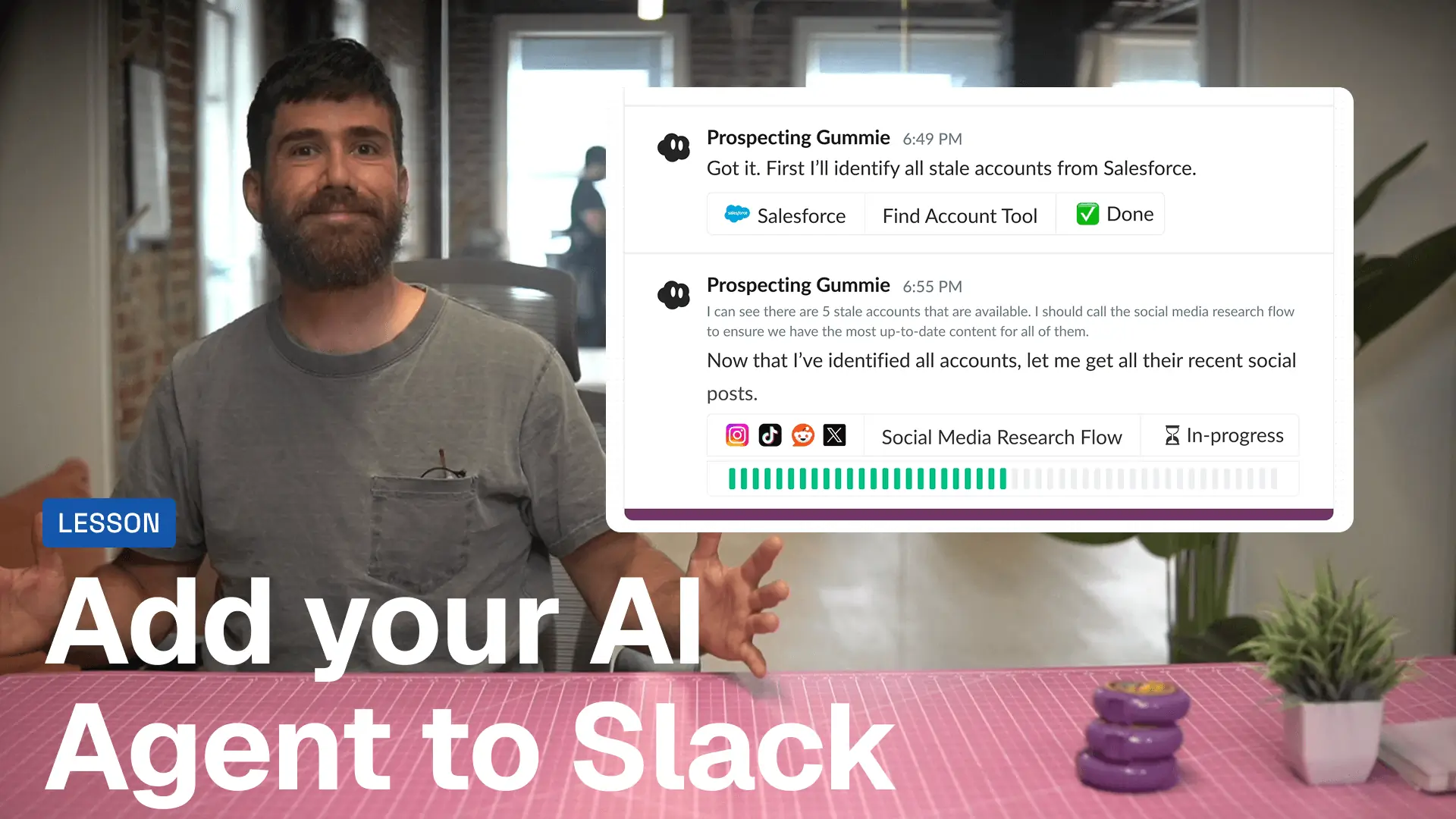
Your agent only exists in Gumloop right now. That means someone has to log in, find it, and chat with it there. Your team isn't going to do that. In this lesson, we'll bring your agent into Slack—right where your team already works—so it becomes a natural part of how they get things done.
Your agent works. You've given it tools, written instructions, and tested it. But here's the problem: it lives in Gumloop.
That's fine for you—you're the one building it. But your team? They're not logging into Gumloop to ask questions. They're in Slack. That's where work happens, where questions get asked, and where your agent needs to be if it's actually going to get used.
The good news? Getting your agent into Slack is dead simple.
Three steps to go live
Step 1: Add Gumloop to your Slack channel
Pick the channel where you want your agent to live. This could be #general, #support, #sales—wherever makes sense for what your agent does.
Add the Gumloop bot to that channel just like you'd add any other team member.
Step 2: Copy the Slack command from your agent settings
Head into your agent's settings in Gumloop. You'll see a Slack command that looks something like /gummie connect [your-agent-id].
Copy it.
Step 3: Paste the command into your Slack channel
Go back to Slack and paste that command into the channel. Hit enter.
That's it. Your agent is now live in Slack.
How your team uses it
Anyone in the channel can now interact with your agent by tagging @gumloop and asking a question.
The agent will respond in a thread—keeping conversations organized and easy to follow. Your team can continue the conversation in that thread, asking follow-ups, clarifying, or digging deeper.
It's conversational. It's natural. It works the way Slack already works.
Control threading behavior
By default, your agent treats every message in a thread as something it should respond to. If you want it to only respond when explicitly tagged with @gumloop, you can change that in your agent settings. This makes back-and-forth conversations easier.
A few things worth knowing
Public or private channels—both work
Your agent can live in public channels (visible to everyone) or private channels (invite-only). The choice is yours based on what the agent does and who should have access.
One agent per channel
You can only have one Gummie per Slack channel. If you need multiple agents, set up separate channels for each one.
See past conversations
Want to review what your agent's been up to? Head into your agent settings in Gumloop—you'll find a full history of every conversation it's had.
Need help? Use /gummie help
Type /gummie help in any channel where your agent lives, and you'll get a full list of commands and options.
Multiple agents in the same channel?
The standard Gumloop integration limits you to one agent per channel. If you need multiple agents in the same channel—like a Sales Agent and a Support Agent both active in #general—you can use custom Slack apps. Each agent gets its own bot handle and avatar, so teams can distinguish between them easily.
Your agent is live
That's it. Your agent is now part of your team's workflow—answering questions, running flows, and helping your team get work done without leaving Slack.
But here's the thing: just because your agent is live doesn't mean it's optimized. In the next lesson, we'll talk about how to write better instructions—so your agent becomes genuinely useful instead of just technically functional. Let's make it great. 🚀
