


From node to automation
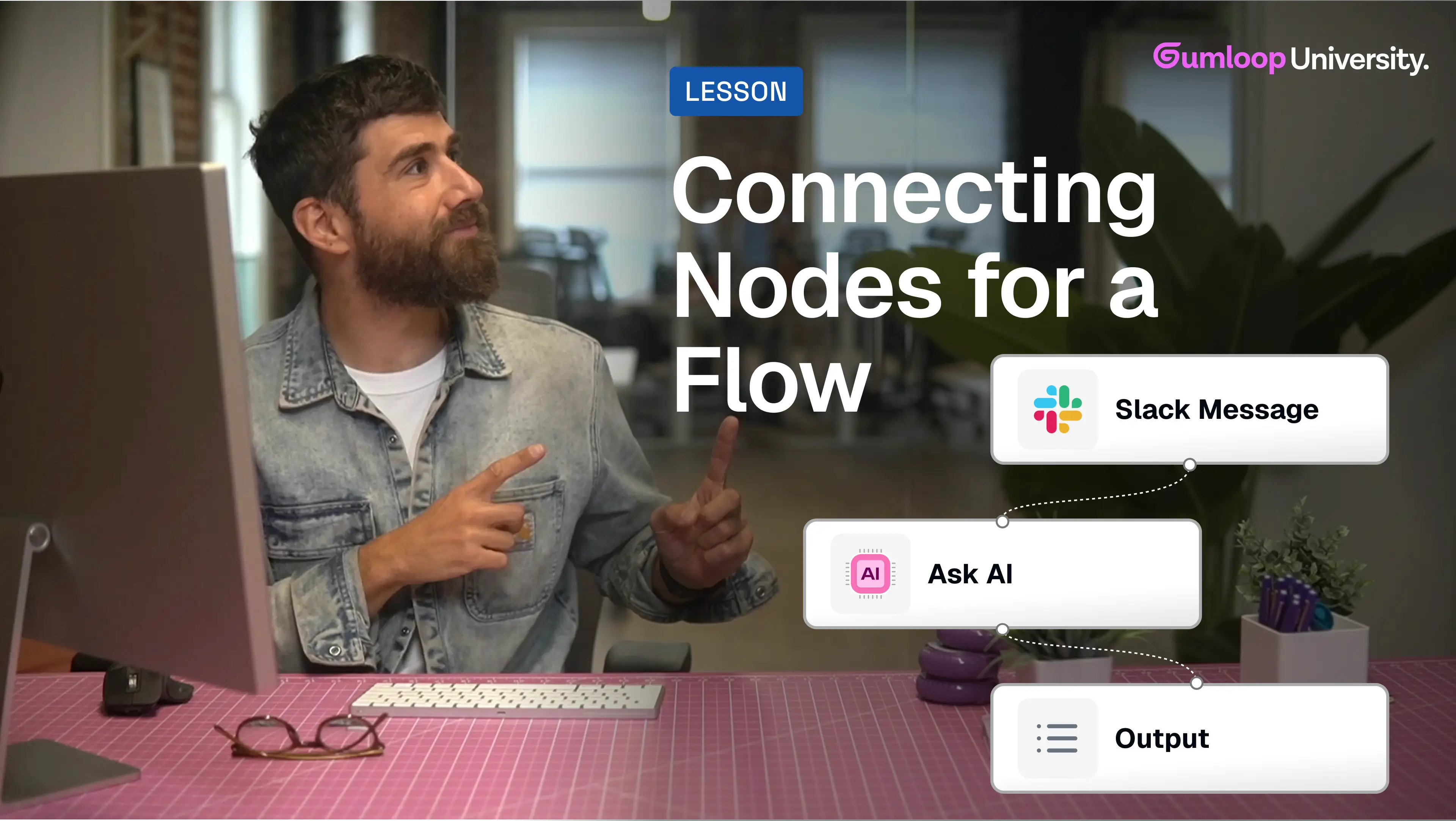
Automation isn’t just about steps — it’s about connection. Learn how to link nodes together so data flows smoothly from one step to the next, turning your nodes into a real working automation.
Individual nodes are useful, but they're not an automation yet. The magic happens when you connect them together and pass information from one step to the next.
That arrow between nodes? It's saying: "Take this data from Step 1 and use it in Step 2."
Without connections, you just have isolated steps. With connections, you have a workflow that actually does something.
How to Connect Nodes: A Two-Step Process
Getting data from one node to another is simple—it just takes two steps:
Step 1: Connect the nodes
Drag from the output of one node to the input of the next node. This creates a connection (you'll see an arrow).
Once nodes are connected, all the outputs from the first node become available as inputs in the second node.
Step 2: Map the data
Now you can select which specific piece of information you want to use.
You can either:
- Drag the output you need into a field
- Type
@in any text field to search for available inputs
That's it. Connect, then map.
Example: Email Summary to Slack
Let's say you want to:
- Read your latest email
- Summarize it with AI
- Send yourself the summary on Slack
Here's how the connections work:
Gmail Reader → Ask AI
The Gmail Reader outputs things like: sender, subject, body, timestamp, etc.
You connect it to the Ask AI node, then drag the email body into your prompt. Now the AI can see and summarize that email.
Ask AI → Slack Message Sender
The Ask AI node outputs the summary.
You connect it to Slack, then map that summary into the message field. Now Slack knows what to send.
When you run the flow, each node executes in order:
- Gmail grabs the email
- AI summarizes it
- Slack sends you the result
That's a complete automation.
Connecting Multiple Nodes to One
Here's something useful: you can connect multiple nodes to a single node.
Going back to our email example—let's say you want your Slack message to include both:
- The AI summary (from the Ask AI node)
- The sender's email (from the Gmail Reader node)
You can connect both nodes to the Slack Message Sender. Now you have access to outputs from both, and you can use them together in your message.
This is how you combine information from multiple sources into a single output.
Use @ to find inputs quickly
When working in any text field, type @ to bring up a searchable list of all available inputs from connected nodes. This is faster than dragging, especially in flows with many nodes.
Practice challenge
Ready to practice? We've created a few flows with unconnected nodes. Your job: connect them and pass the right data through to complete the automation.
Click here to start the challenge.
You now know how to turn individual nodes into a connected automation. This is the core skill that makes everything else in Gumloop possible.
Next up: making these flows run automatically. Instead of clicking "Run" every time, you'll learn how to set up triggers that kick off your automations when something happens. Let's do it. 🚀
